
Downloading Releases
When a claim has been determined to be eligible for compensation, you will receive an automated email notification from the Trust that releases are available for download. You should then follow the steps below:
1) Login to the application.
1) Login to the application.
2) On the Homepage under My Application Tools, select Download Releases. The following search page will be displayed.
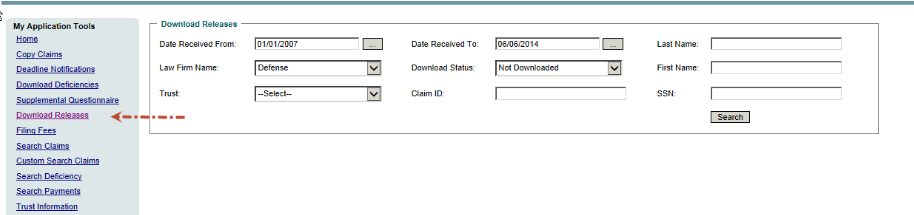
3) The Date Received From (i.e. the date you received the email notice that releases were available) field is defaulted to the inception date of the Trust and the Date Received To field is defaulted to the current date – you may change these dates to narrow the scope of your search.
4) Select the name of your firm from the Law Firm Name drop-down.
5) Select the name of the trust from the Trust Name drop-down.
6) From the Download Status drop-down select either “Not Downloaded” to get a list of releases you have not yet downloaded and reviewed, or “Downloaded” for a list of releases previously downloaded (if you need to download another copy of the same report).
7) Click the Search button. A list of releases meeting your search criteria will be displayed.
8) Check the Download box next to each report you want to download and click the Download button. To download all releases, click the
Download All Releases button.
9) You will be prompted to either open or save a ZIP file containing the releases you selected. We recommend selecting Save and keeping a copy of the releases for future reference. Once you have saved the file, the individual releases can be opened and printed using Adobe Acrobat Viewer.
Returning Signed Releases
To accept an offer, the Trust requires an electronic copy of the signed release be returned to the Trust.
The claim will be placed in the FIFO Payment Queue as of the date the release was returned to the Trust.
To upload individual releases:
1) Select “Upload Document” from the Claim Actions dropdown. Click “Go”. The following pop up will be displayed.

2) Click the Browse button and select the image file to be uploaded.
3) Select “Release” from the Document Type dropdown.
4) Click the Start Upload button. The image file will automatically be imported and linked to the claim record.
Note:
If you do not have the capability to image signed releases, you may return the signed originals to the Trust c/o Verus Claims
Services at the following address:
3) Select “Release” from the Document Type dropdown.
4) Click the Start Upload button. The image file will automatically be imported and linked to the claim record.
Note:
If you do not have the capability to image signed releases, you may return the signed originals to the Trust c/o Verus Claims
Services at the following address:
3967 Princeton Pike
Princeton, NJ 08520